Private beta
Before you start
- Use a HubSpot Super Admin, or a user with Marketplace access and permission for every requested scope.
- Use a HubSpot account with Sales Hub, including Starter. Workflow automation is not required.
- Know which pipeline and opening stage should hold newly created renewal deals.
- For a useful first test, prepare one fictional or non-sensitive deal with at least one line item.
- Allow about ten minutes for installation, configuration and a controlled test.
Renewals Autopilot creates a new renewal deal. It does not move the source deal backwards through a pipeline, overwrite the source, or modify prior revenue history.
95-second tour
Watch the complete customer journey
The walkthrough uses a dedicated demo account, fictional deal data and Stripe test mode. No names, email addresses, account IDs or customer records are visible. Select any illustrated step to open it full screen, then choose View at 100% for pixel-level detail.
Customer installation
Install Renewals Autopilot
Start from Quietmill
Select Install private beta. When the Marketplace listing is public, this first step will move to the Marketplace; the remaining OAuth flow stays the same.
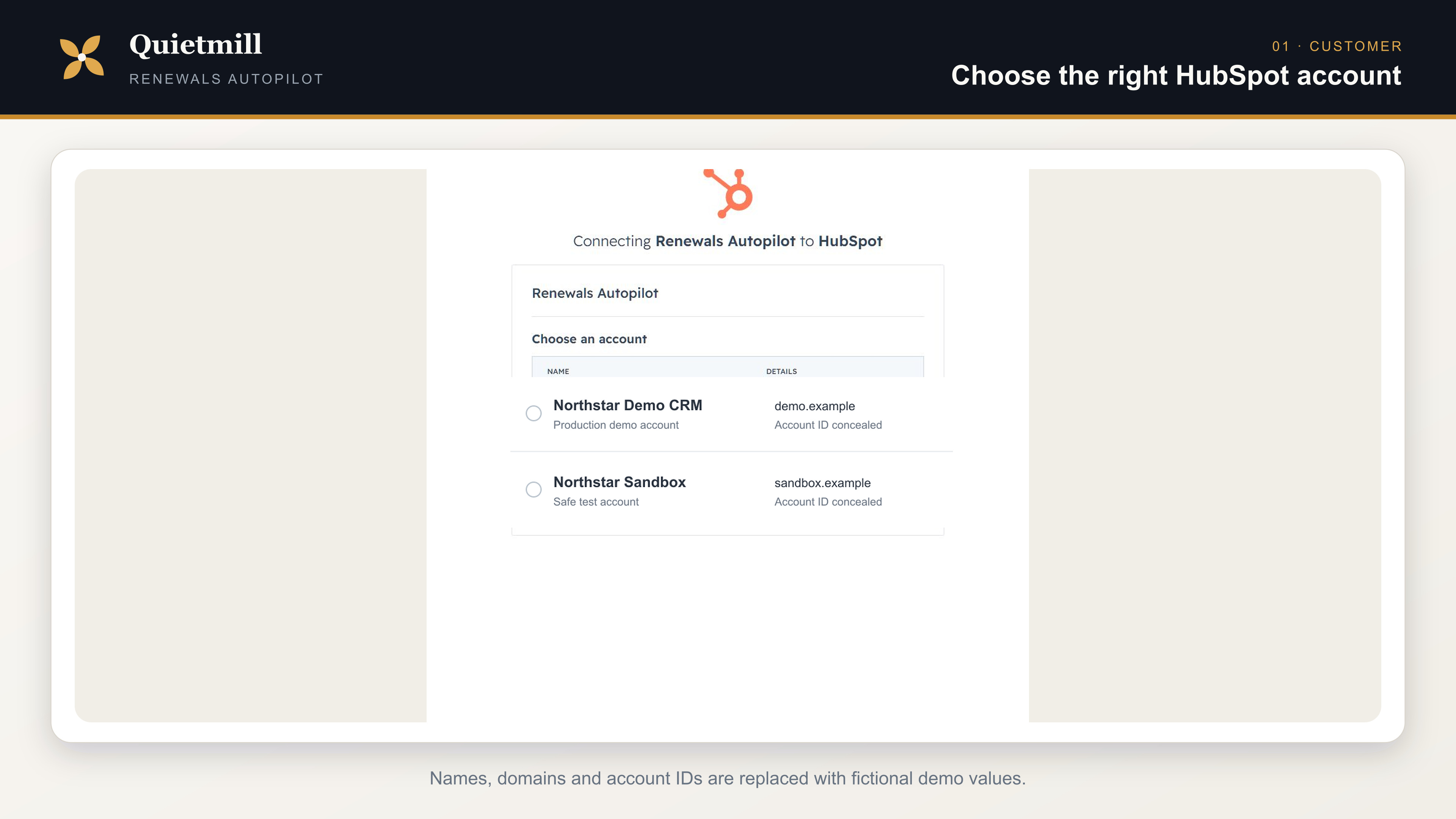
Choose the correct HubSpot account
HubSpot lists the accounts your user can access. Select the production or test account you intend to connect, then continue.
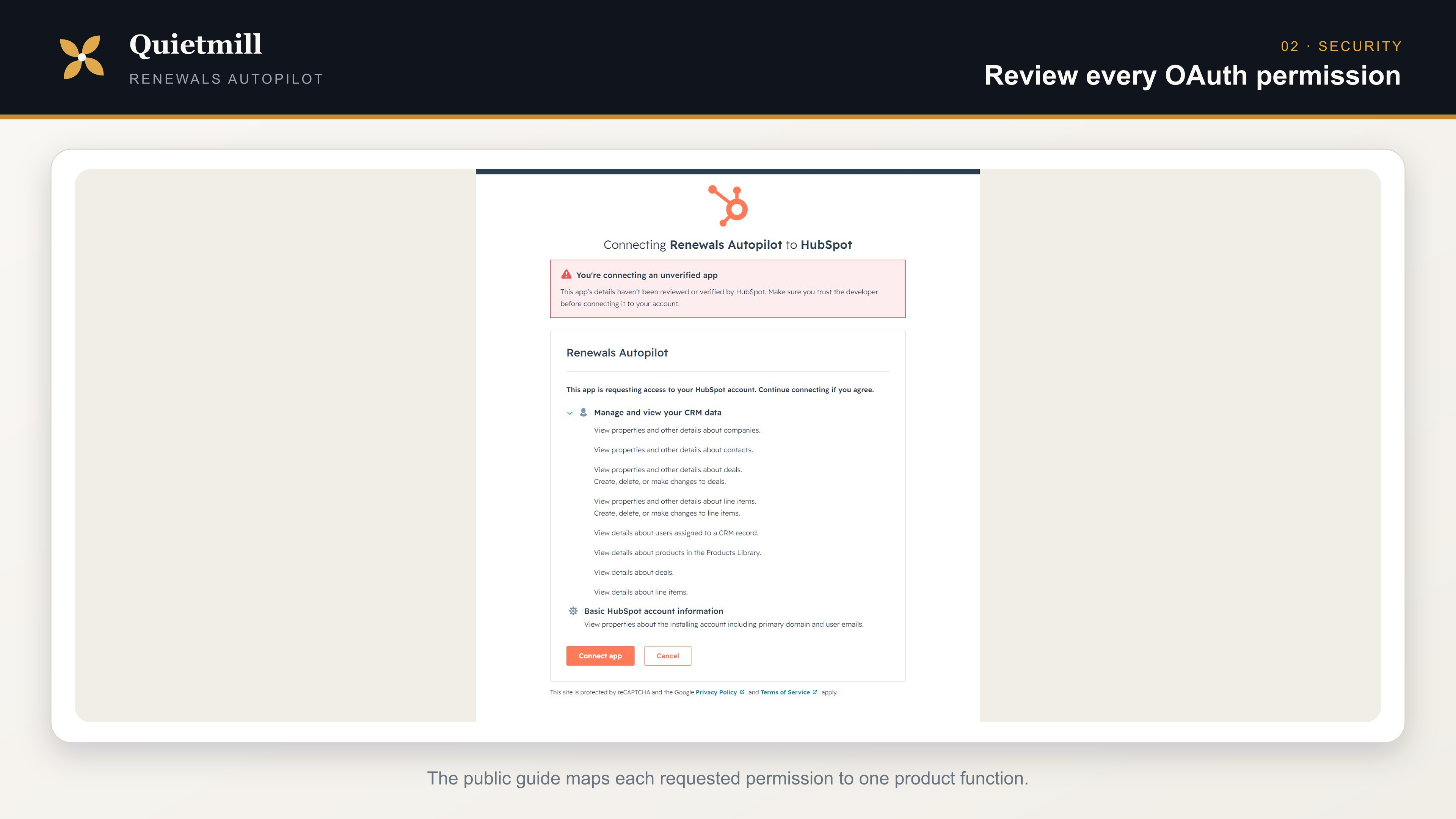
Review the requested access
Read the permission screen and compare it with the scope table below. Select Connect app only if the account and access are correct.
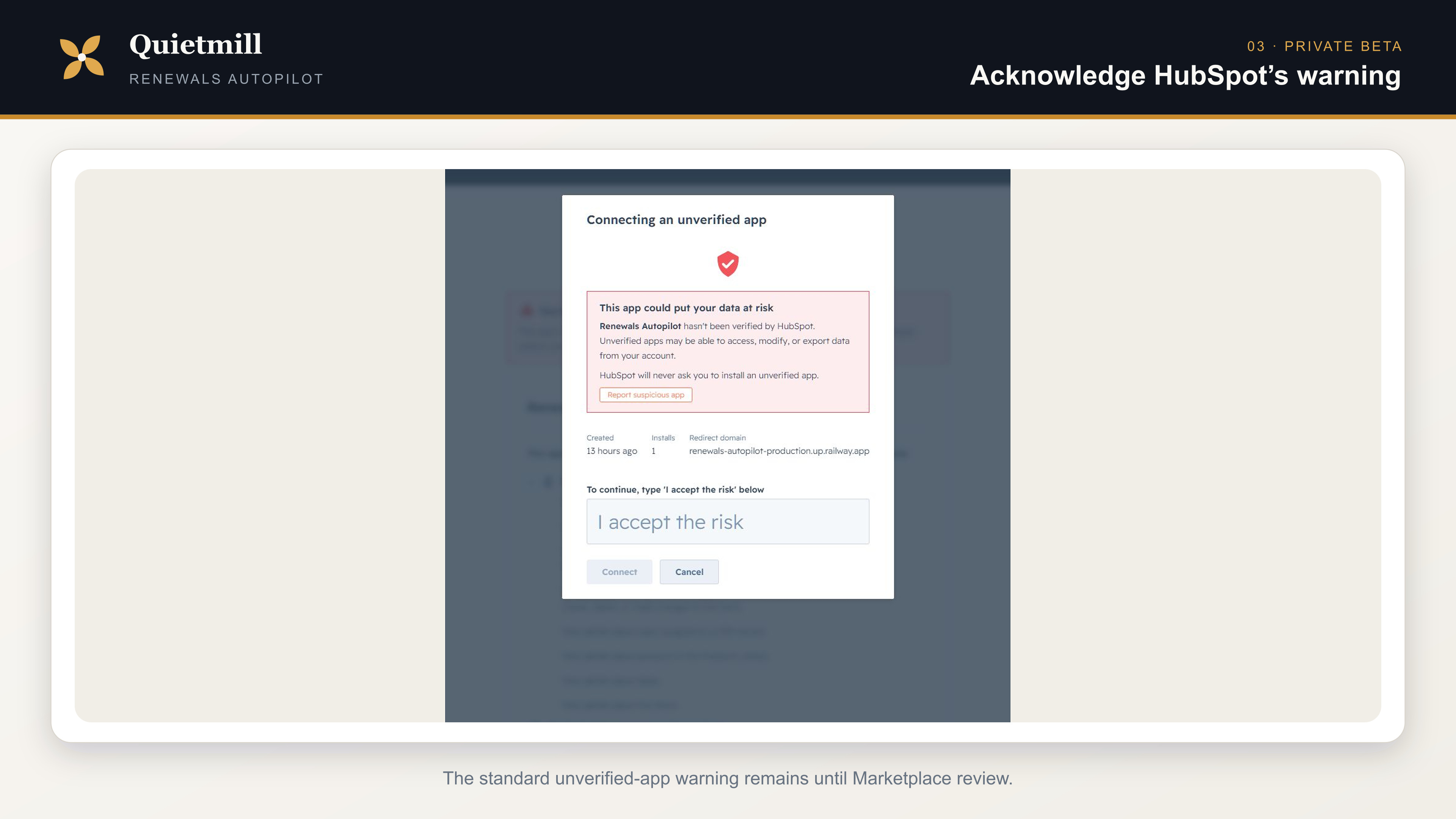
Acknowledge the private-beta warning
HubSpot asks you to type I accept the risk for an unlisted app. Confirm the app name and Quietmill redirect domain, type the phrase exactly, then select Connect.
Land in app settings
After OAuth succeeds, Renewals Autopilot redirects back into HubSpot's connected-app settings. Automation remains off until an admin saves a valid rule and enables it.
Security review
What every OAuth scope is for
| Scope | Why the app needs it |
|---|---|
oauth | Connects the selected account and refreshes access without asking an admin to paste tokens. |
crm.objects.deals.read | Reads the source deal, stage, close date and owner before creating the next term. |
crm.objects.deals.write | Creates the renewal deal and its labelled renewal-chain associations. |
crm.objects.line_items.read | Reads source line items, prices, quantities and recurring-term fields. |
crm.objects.line_items.write | Creates and associates copied line items on the renewal deal. |
crm.objects.contacts.read | Preserves relevant deal-to-contact associations; the app does not edit contacts. |
crm.objects.companies.read | Preserves relevant deal-to-company associations; the app does not edit companies. |
crm.objects.products.read | Retains product references when reconstructing line items. |
crm.objects.owners.read | Populates the fixed-owner selector and validates owner choices. |
crm.schemas.deals.read | Reads pipelines, stages and deal schema needed for configuration and safe copying. |
crm.schemas.line_items.read | Reads line-item property definitions before copying supported fields. |
HubSpot admin
Configure one renewal rule
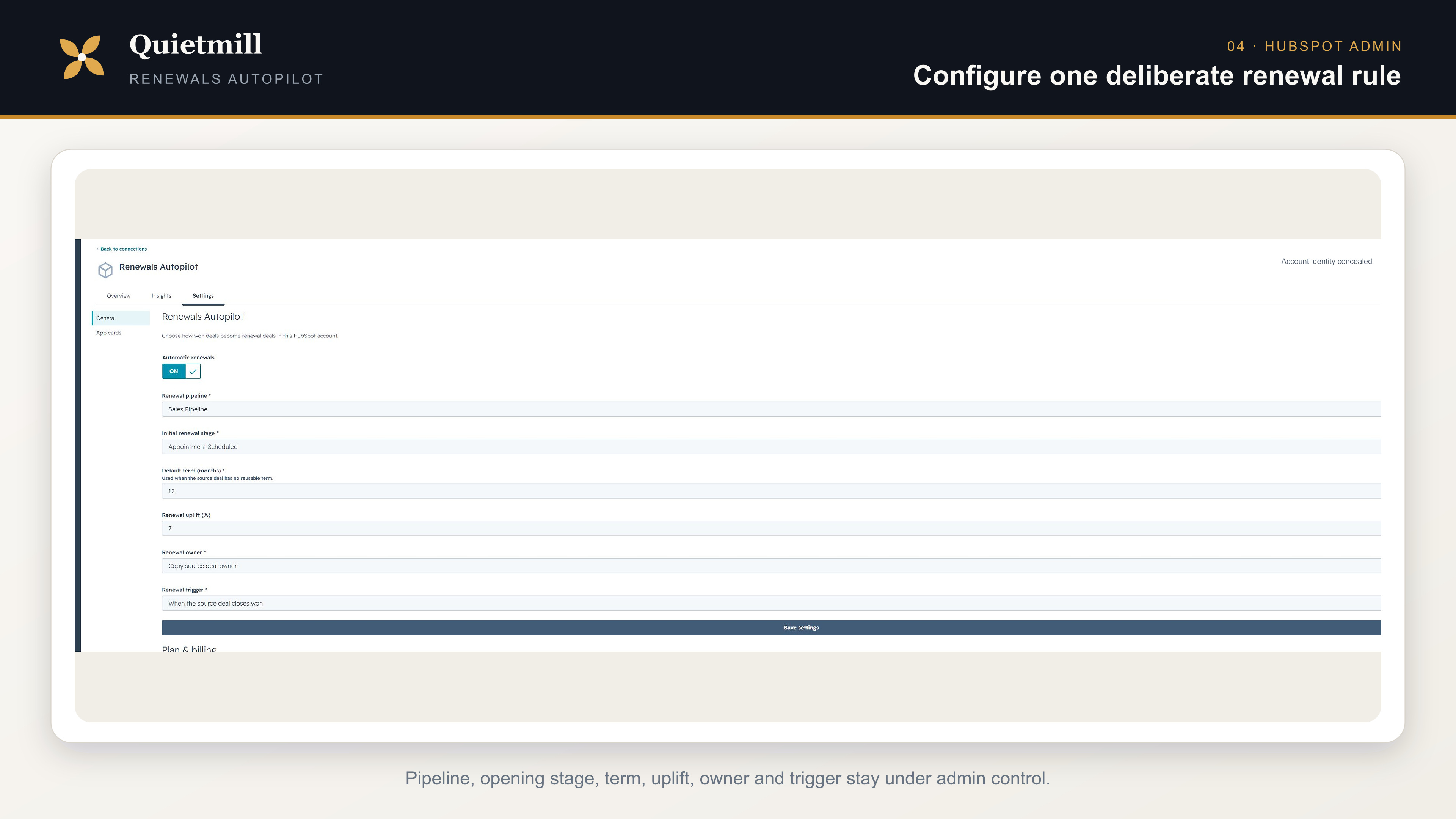
| Setting | Admin decision |
|---|---|
| Automatic renewals | Leave off while configuring. Turn on only after every field is reviewed. |
| Renewal pipeline | The pipeline that should contain the new renewal deal. It may be your normal sales pipeline or a dedicated renewals pipeline. |
| Initial renewal stage | The opening stage for the newly created deal—not Closed won. |
| Default term | Usually 12 months. Used only when recurring line items do not provide a reusable term. |
| Renewal uplift | A percentage applied only to eligible recurring line items. Use 0 for no uplift. |
| Renewal owner | Copy the source owner, select one fixed owner, or leave the renewal unassigned. |
| Renewal trigger | Closed won creates the next term after a source deal enters a closed-won stage. Before contract end scans closed-won deals and computes term end from recurring billing fields, falling back to close date plus the default term. |
| Days before contract end | Required only for the contract-end trigger. Choose 1–3650 days; the first scan establishes a baseline and does not backfill already-overdue contracts. |
- Choose the pipeline before the stage; changing pipeline clears the stage selection.
- Save once with automation still off and review the saved values.
- Turn on Automatic renewals and save again.
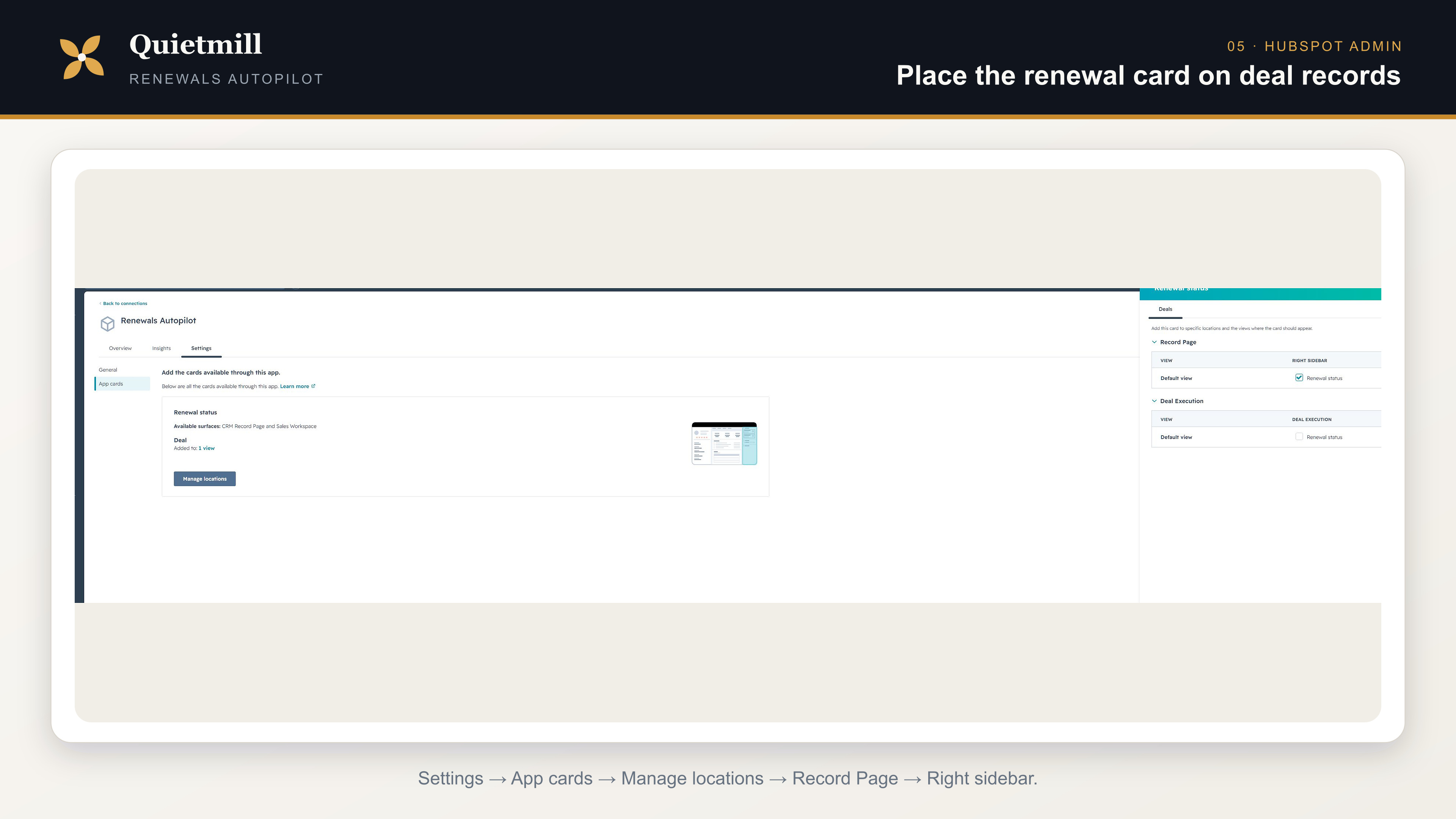
HubSpot admin · one-time placement
Add the Renewal status card to deal records
Installing the app makes its card available, but HubSpot admins still control where that card appears. Complete this placement once so portal users can see renewal lineage and processing status.
- Open Settings → Integrations → Connected Apps → Renewals Autopilot.
- Select Settings → App cards, then Manage locations.
- Expand Record Page.
- For Default view, select Renewal status under Right sidebar.
- Select Save. You may also place the card in additional views if your HubSpot layout requires them.
Controlled first run
Verify the first created renewal
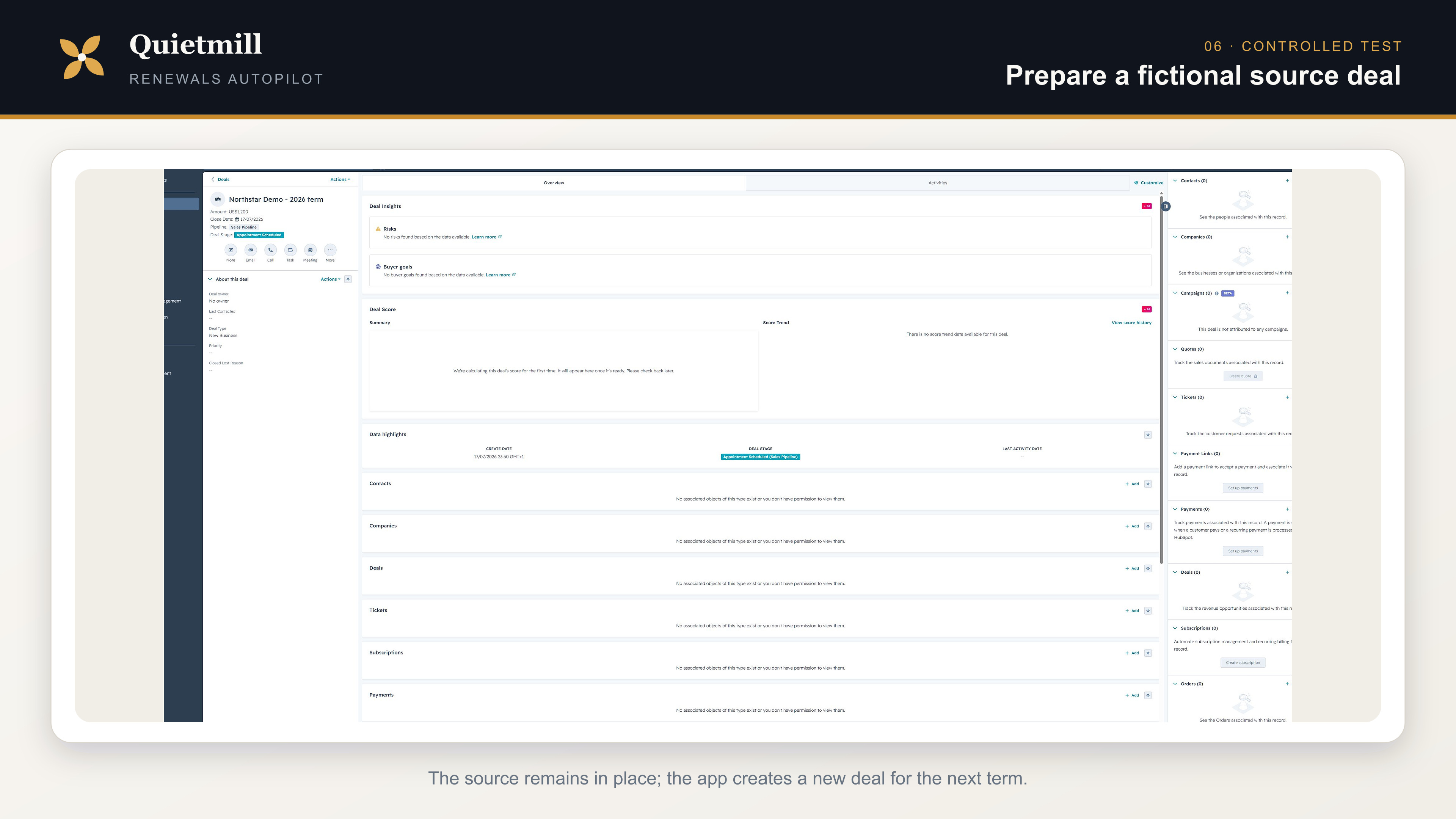
Create a safe source deal
Use a fictional name such as “Northstar Demo — 2026 term”. Add a close date and at least one line item. For recurring-date verification, use a recurring line item with a billing period and start date.
Fire the selected trigger
For Closed won, move the source into a closed-won stage. For Before contract end, use a term whose computed end falls inside the configured lead window and allow the hourly scanner to run.
Inspect the renewal
Open the new deal in the configured pipeline and confirm its name, opening stage, owner, close date, copied line items, shifted recurring dates and uplift.
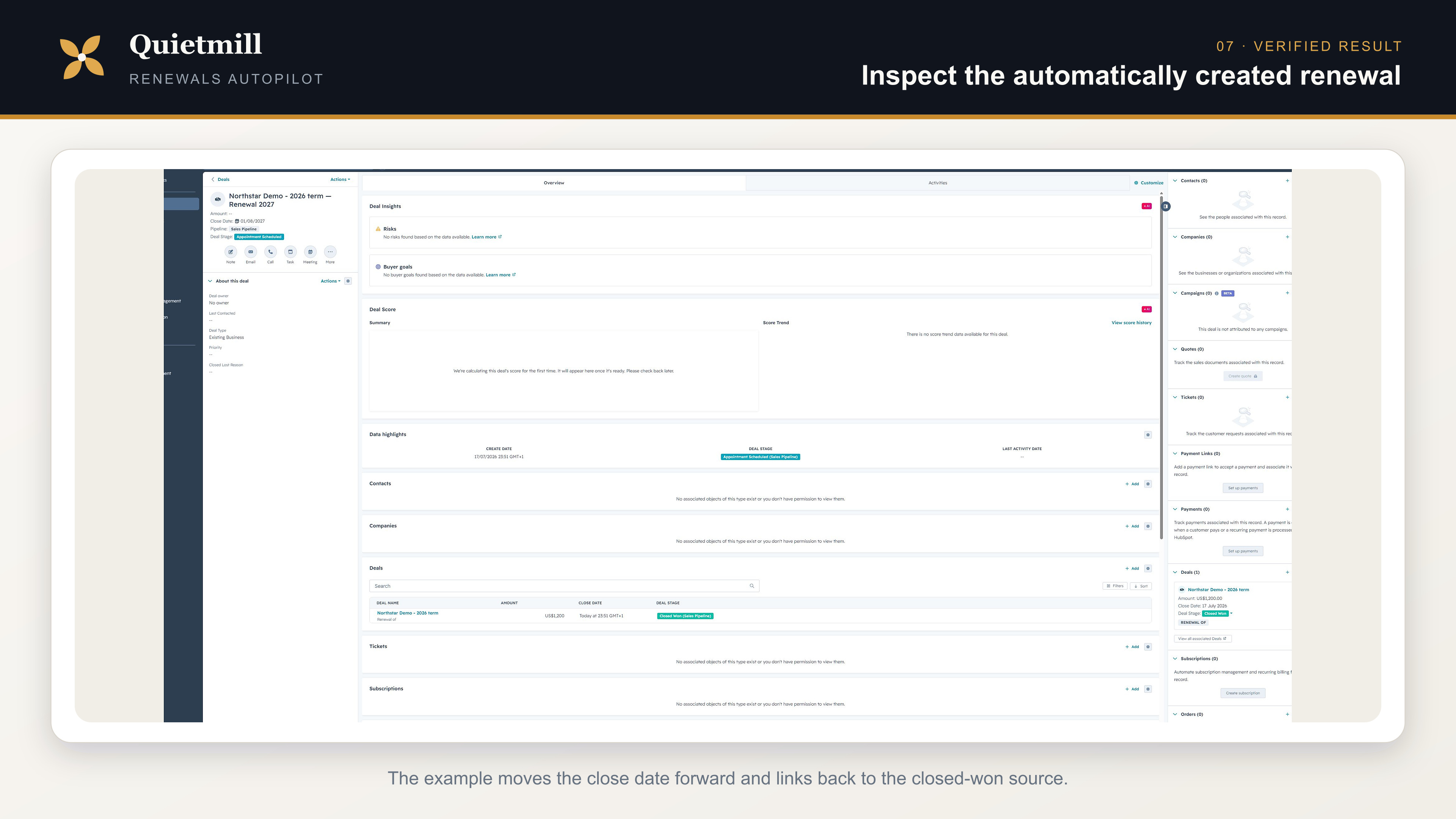
- The source deal remains closed won and unchanged.
- Exactly one renewal deal is created for the source event.
- One-time items keep their price; eligible recurring items receive the configured uplift.
- Recurring start dates move to the new term where HubSpot term fields are available.
- The source and renewal are linked in both directions.
Inside each deal
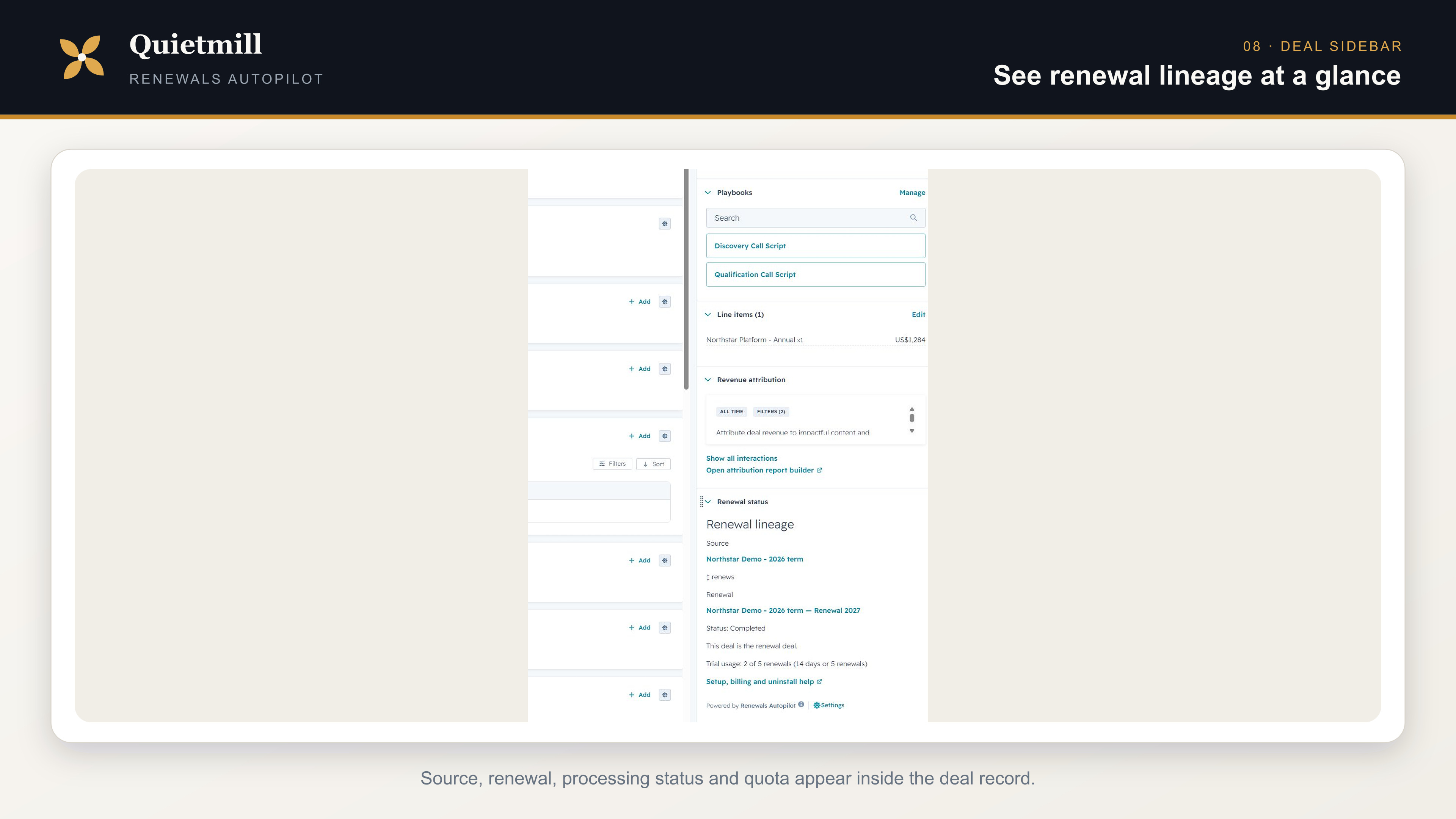
Read the renewal-lineage card
The Renewals Autopilot sidebar card identifies whether the current record is the source or renewal, links the two deals, shows processing status and reports trial or monthly quota usage.
Trial and plans
Choose a plan or manage billing
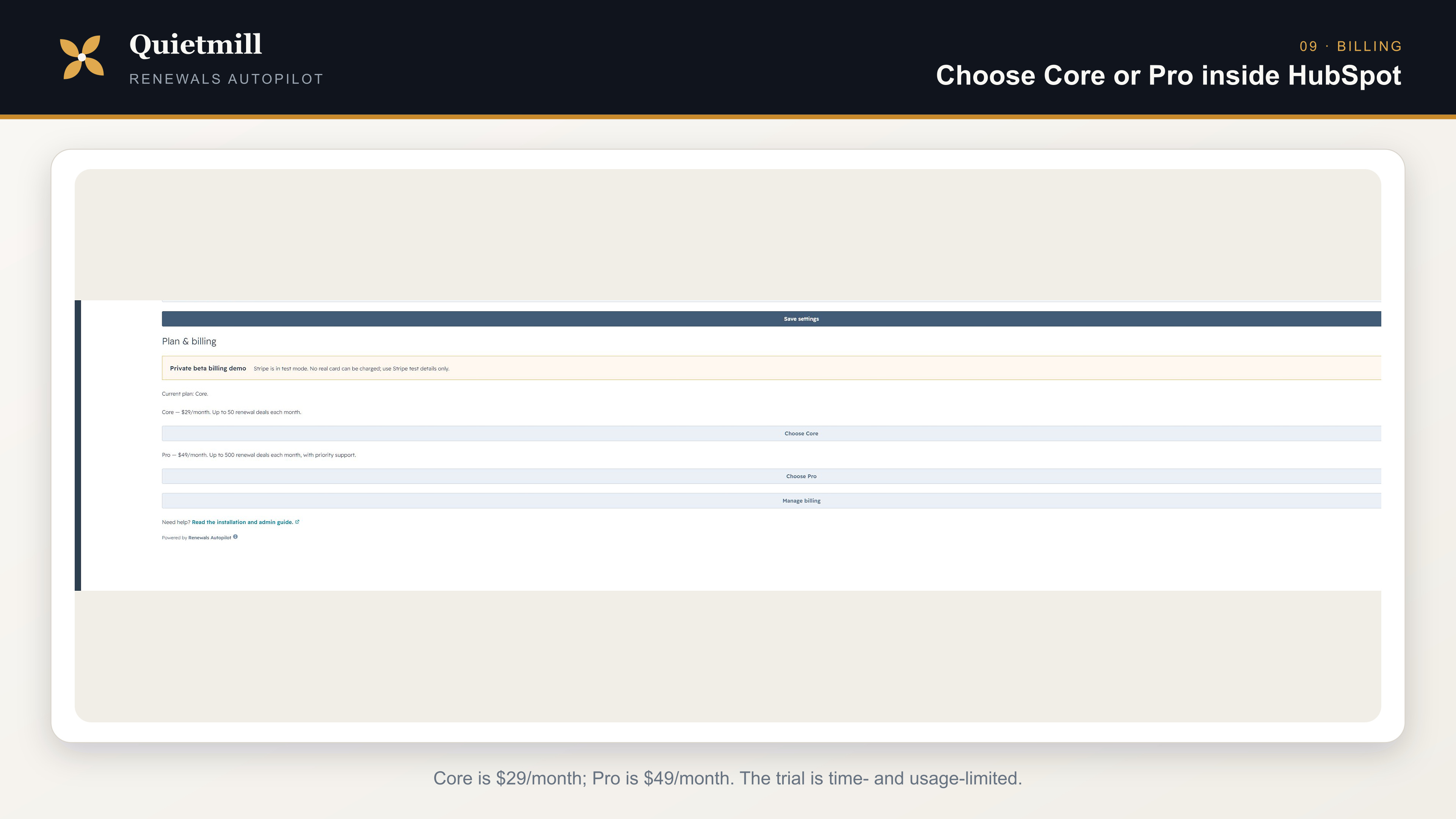
The standard trial ends at the earlier of 14 days or 5 created renewal deals. It is not a free-forever plan. Selected founding accounts may receive explicitly time-bounded beta access.
Core · $29/month
Up to 50 created renewal deals per calendar month.
Pro · $49/month
Up to 500 created renewal deals per calendar month, with priority support.
- Open the app's Settings tab and go to Plan & billing.
- Select Core or Pro. The app creates one short-lived, portal-bound Stripe Checkout session.
- Select Continue securely with Stripe and complete Checkout.
- After payment, return to HubSpot. Stripe's signed webhook activates the plan; a short refresh delay is normal.
- Once a Stripe customer exists, use Manage billing for plan and cancellation controls.
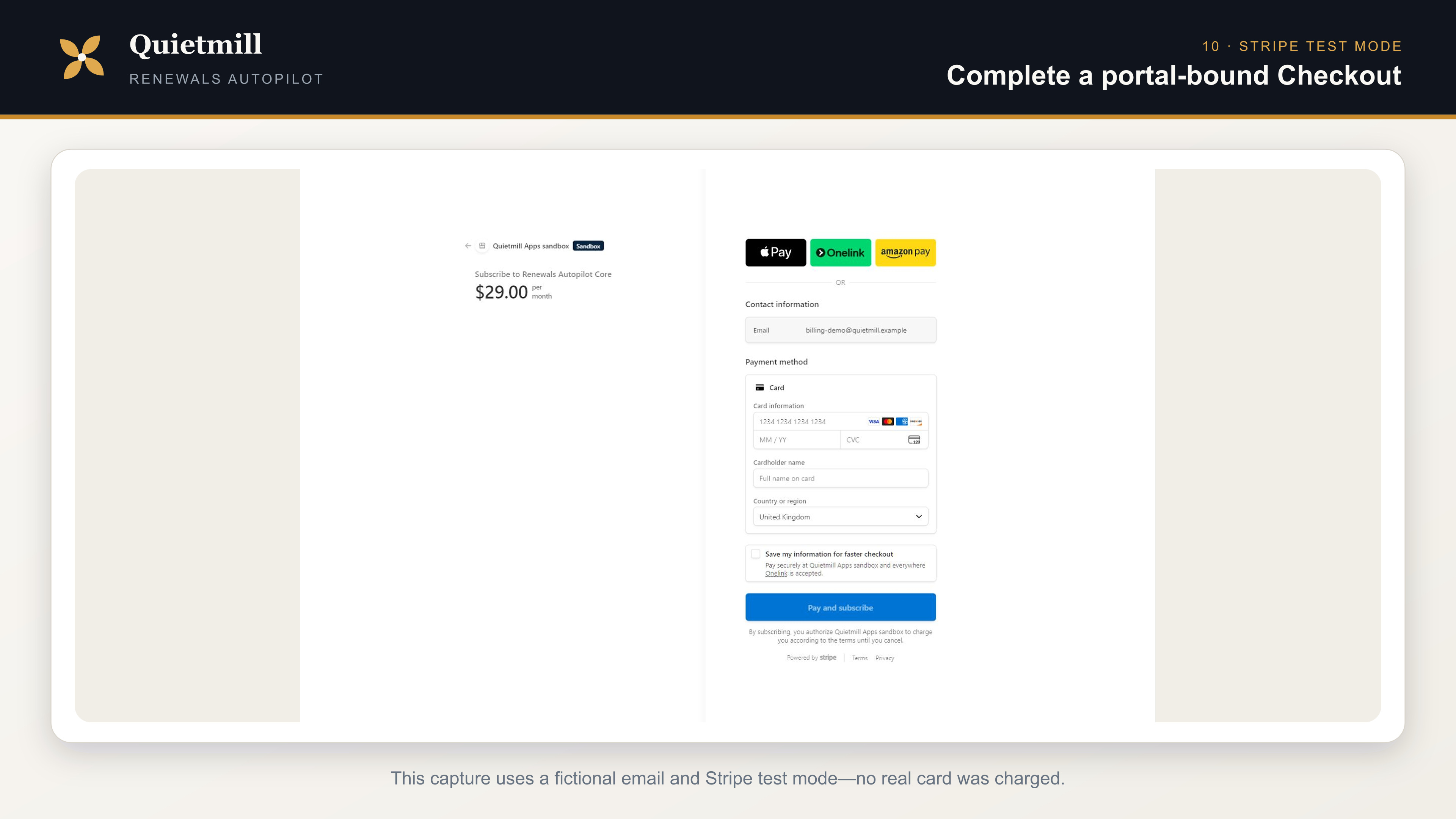
4242 4242 4242 4242, any future expiry and any three-digit CVC. Never enter a real card into a test-mode form.Removal
Disconnect and uninstall
- In HubSpot, open Settings → Integrations → Connected Apps.
- Open Renewals Autopilot, select Actions, then Uninstall.
- Review HubSpot's confirmation and complete the uninstall.
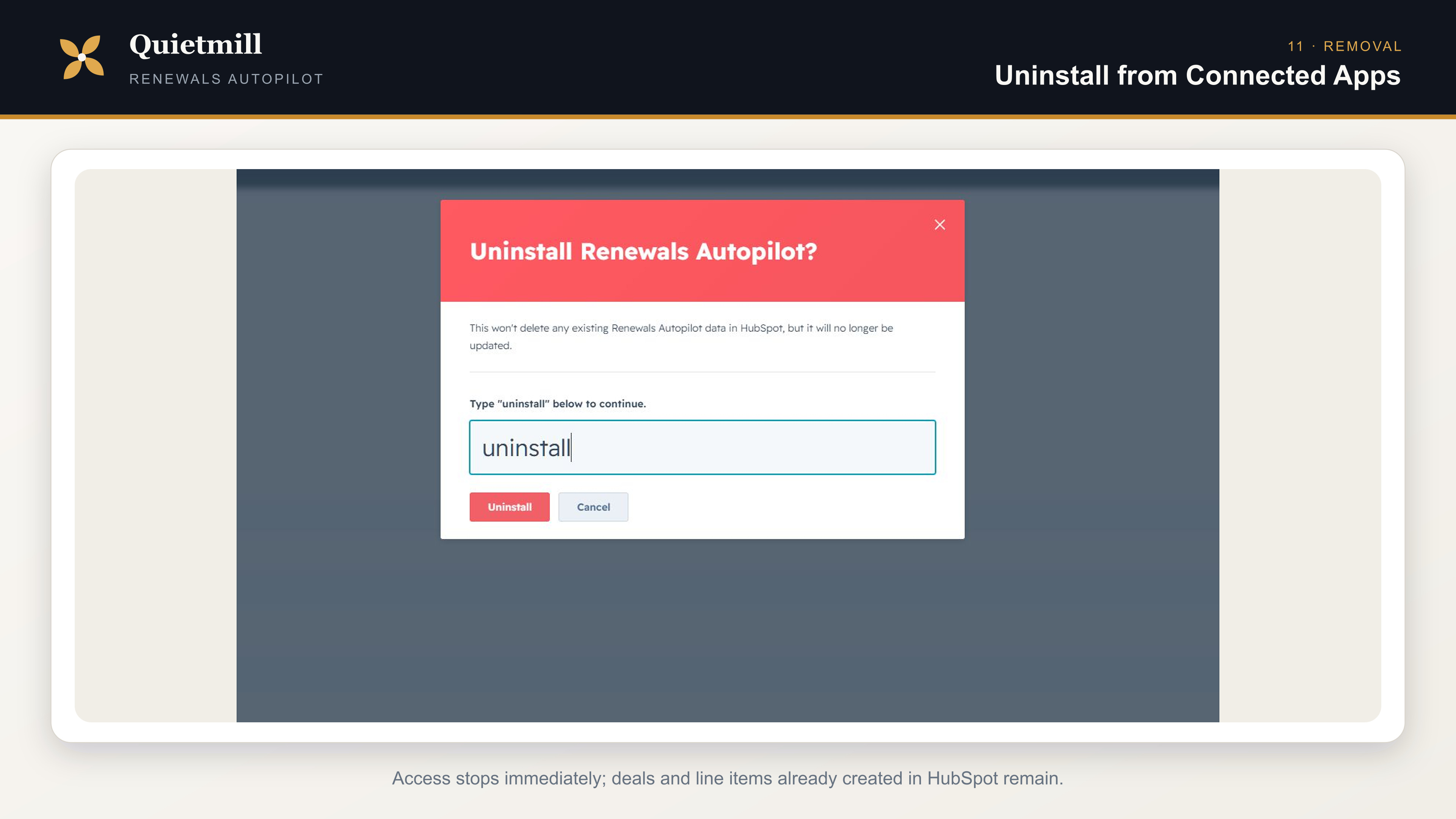
Quietmill retains encrypted installation, configuration, idempotency and billing records needed for audit and safe retry. To request deletion of retained app-side records after uninstall, email [email protected] from an authorized account contact.
Fast diagnosis
Troubleshooting
| Symptom | Check |
|---|---|
| Cannot install | Confirm the user is a Super Admin or has Marketplace access plus every requested object/schema permission. |
| Settings have no pipelines | Reconnect if OAuth was interrupted; confirm the account has at least one deal pipeline. |
| No renewal after Closed won | Confirm automation is on, the trigger is Closed won, and the source entered a stage HubSpot marks with 100% probability. |
| No scheduled renewal | Confirm a lead time of at least one day, eligible paid/trial access, a source close date and usable recurring term fields or default term. |
| Copied dates look wrong | Inspect the source line item's recurring billing start, period, frequency and delay fields; the app does not invent missing product terms. |
| Renewal status card is missing | Open the connected app's Settings → App cards → Manage locations and add Renewal status to the Record Page right sidebar for the relevant view. |
| Checkout says another session is pending | Use the already-created link or wait for the short-lived Stripe session to expire. The lock prevents accidental duplicate subscriptions. |
Still stuck? Email [email protected]. Include the HubSpot portal ID and the approximate event time, but do not send access tokens, card details or exported customer records.
Guide last reviewed 17 July 2026 for the Renewals Autopilot private beta.