On this page
Get started
Start with Review only
You need project administrator access to change a project's settings. Ask a Jira administrator to install the app first.
- Open Apps → AutoReply Guard → Settings.
- In Protection, choose your project.
- Turn on Use AutoReply Guard.
- Leave Review only selected and choose Save changes.
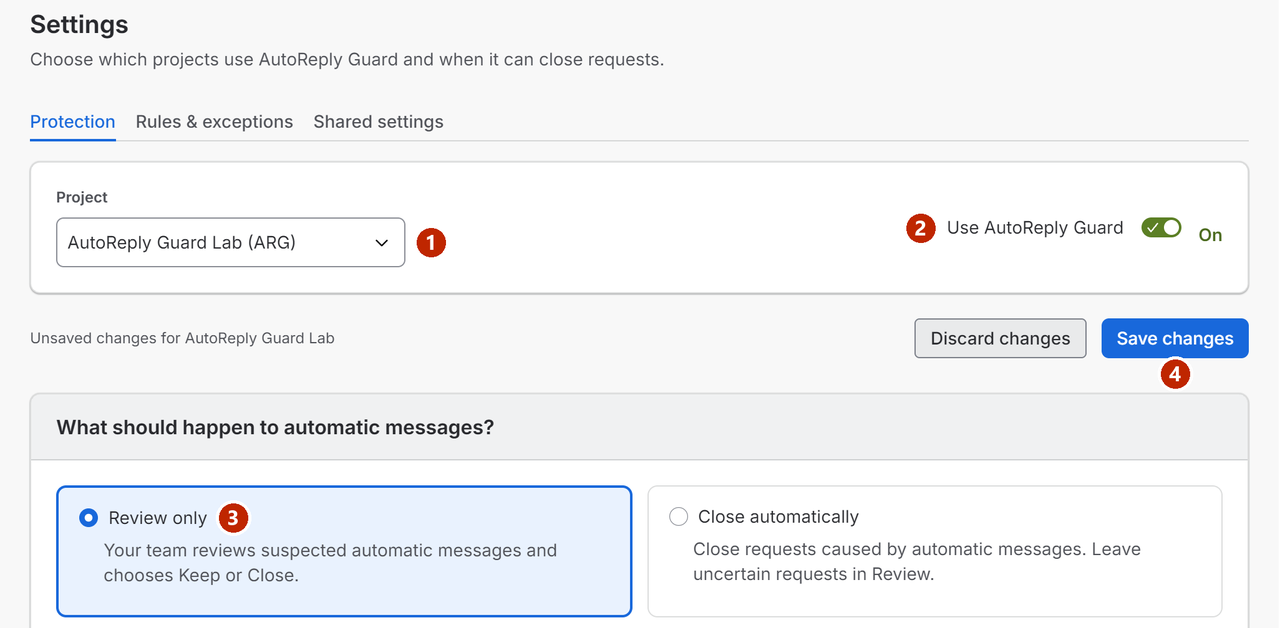
Settings → Protection: (1) the project, (2) the Use AutoReply Guard switch, (3) Review only, (4) Save changes. The bar with Save changes appears once you change something. - Open Review when requests appear. Read the message, then choose Keep or Close.
What happens next
AutoReply Guard flags possible automatic messages. It does not close requests automatically. Your team can still close a request manually.
The initial email check looks back over recent requests and reports possible matches. It does not close them.
What does the initial email check do?
When you turn a project on, AutoReply Guard runs the Initial email check. It looks at the latest emailed requests from the last 14 days, up to 1,000 per project, and counts how many matched the automatic-closing rules. After a later settings change it runs again as the Recent email check.
The result appears on the Overview, for example “[n] of [total] recent requests matched the automatic-closing rules.”, with the line This check did not close any requests. Select Show results for each project's detail.
Automatic closing and rule previews wait until the check finishes. If it cannot finish, it is retried at the next hourly check. While AutoReply Guard is paused, the check pauses too and continues when you resume.
Which messages does it recognise, and in which languages?
When your service desk emails a customer, the customer's mail system sometimes answers on its own: an out-of-office reply, a bounce, a meeting acceptance, or another helpdesk saying it received your message. Some automatic replies arrive as new JSM requests instead of being filtered out. AutoReply Guard checks the wording of those requests.
AutoReply Guard reads the subject and message text. It does not read email headers. It checks new requests created by email. A reply that Jira adds as a comment to an existing request, because the subject names a request key, is not checked.
The rule set includes wording in nine languages: English, French, German, Spanish, Italian, Dutch, Korean, Chinese and Turkish. Coverage depends on the wording; other languages may not be recognised. Unmatched messages can remain ordinary Jira requests. Live automatic-closing tests cover English, French and Spanish. Before you turn on automatic closing, look at the matches from your own messages in Review.
What it does not do:
- It does not email the requester and does not delete anything. Each closure adds one internal note, which only agents can see.
- It acts after Jira creates the request. Jira may still send its first “request received” email.
- It cannot see your inboxes, your SLA goals or your queue filters. The setup steps tell you what to check there yourself.
Install the app
Ask your Jira administrator to install AutoReply Guard using the link supplied with your invitation. Then open Apps → AutoReply Guard in Jira.
Nothing happens after installation until a project administrator turns on a project, and nothing closes automatically until you choose it.
The four pages of the app
| Page | Use it for |
|---|---|
| Overview | How many requests need review, each project's state under Your projects, Activity for the last 7 or 30 days, the email check, and Message patterns. |
| Review | Deciding whether a flagged request stays with your team (Keep) or is closed (Close). |
| History | How each request was handled, with filters, Refresh, Download CSV and Reopen. |
| Settings | Three tabs. Protection turns a project on and sets up closing. Rules & exceptions holds categories, protected requesters and custom rules. Shared settings covers several projects at once. |
Review and History
Decide whether a request needs work
Read the request's subject and message before choosing an action.
| Action | What it means |
|---|---|
| Keep | Leave the request for your team to handle. |
| Close | Close it in Jira when it needs no work from your team. The record remains available. |
Close asks you to confirm, then moves the request to the Jira status chosen for the project and adds one internal note. You can find it afterwards in Jira and in History.
Why was it flagged?
Open Show details to read the matched wording. A phrase can appear in both an automatic reply and a genuine request for help.
“I have limited access to email this week. Please help me reset my VPN token by phone.”
This asks for help even though part of it resembles an out-of-office reply. Choose Keep so your team can respond.
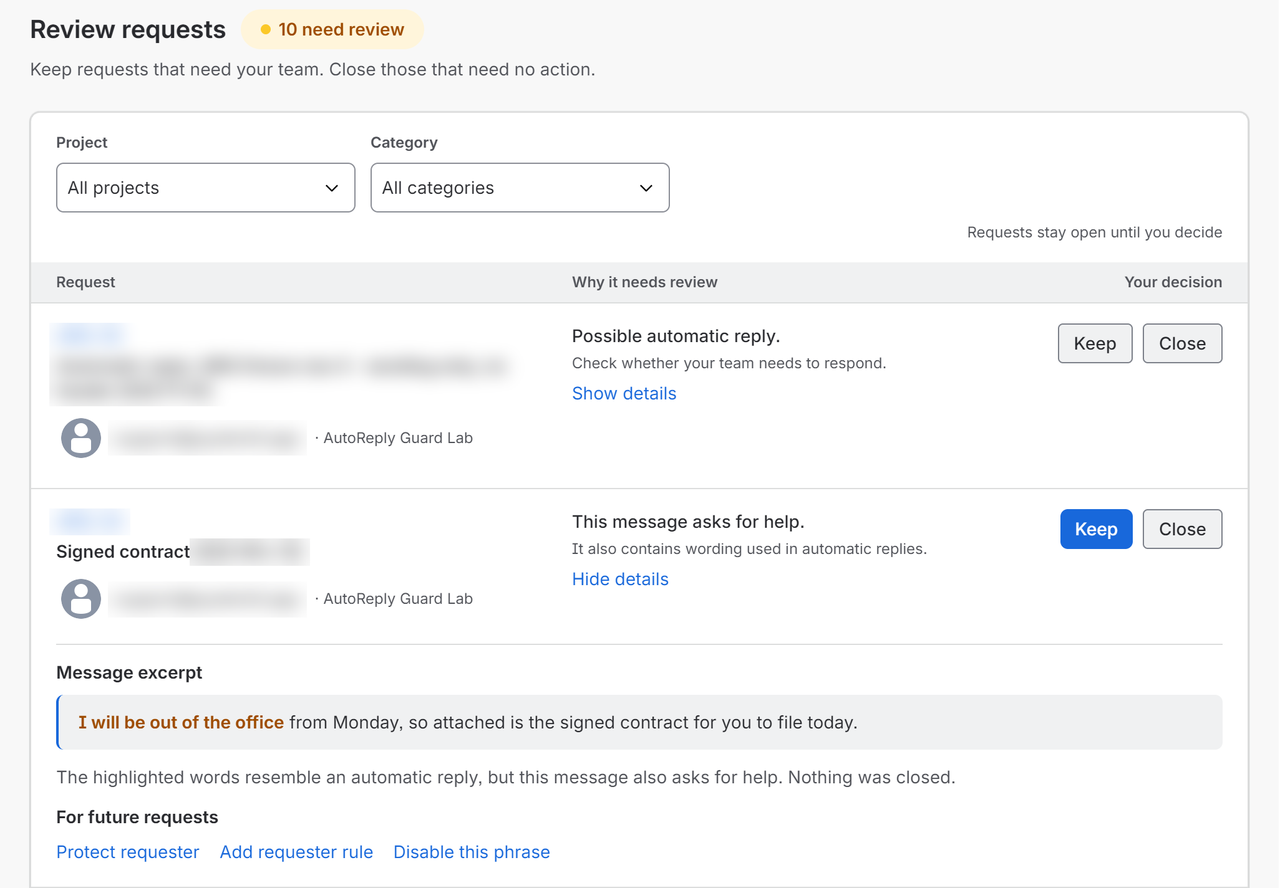
What does each reason on the Review page mean?
Each row says why it is waiting, based on what happened to that request.
| Reason on the row | What it means |
|---|---|
| Possible automatic reply. (or delivery failure, calendar reply, other helpdesk reply) Check whether your team needs to respond. | The wording looks automatic, but not clearly enough to close on its own. |
| This matches the automatic-closing rules. Review only is on, so nothing was closed. | This request would have closed automatically. The project is still on Review only. |
| Calendar replies always need review before closing. / Replies from other helpdesks always need review before closing. | These categories never close automatically. |
| This message asks for help. It also contains wording used in automatic replies. | The message looks automatic but also asks for help. Keep is emphasised. |
| No closing status was selected for this project. / AutoReply Guard could not identify this request's type. / Automatic closing was off for this request type when the request was checked. / The required checks had not passed for this request type. / The recent-request check was out of date. Each ends with “Nothing was closed.” | The setup did not allow closing at the moment the request was checked. These describe that moment, not your current settings. Finish Set up automatic closing if anything is still missing. |
| Your rule for [name] sends matching requests for review. | A requester rule sent it here. |
| The customer replied before this request could be closed. | The requester wrote again, so the app stopped. |
| This request changed before it could be closed. Check the latest details in Jira. | Something changed on the request while it was being closed. |
| We couldn't check whether this requester is protected. (or against your protected organisations) Nothing was closed. | The app could not confirm protection, so it did not close the request. |
Show details also shows the full subject when it is long, where the wording matched, and anything that points the other way, for example The message asks a question., The request has attachments. or The requester is not the email sender. Possible repeat of [key] means the same requester sent a similar subject recently; check both requests, because the content may still differ. Other helpdesk's reference keeps the other helpdesk's ticket number.
Change what happens next time
Keep and Close decide only this request. Under For future requests in the details, up to three actions change what happens to later requests. The same actions appear in a request's details in History.
- Protect requester: requests from this person will not close automatically in this project. Confirm with Add protection; it saves straight away.
- Add requester rule: choose what happens to this person's requests in this category, Send to Review or Close automatically. It saves straight away after you confirm. A rule set to close still sends matches to Review until you preview and apply it. Protected requesters are excluded.
- Disable this phrase: new requests will not be matched using that phrase in this project. It opens a preview first. Existing decisions do not change, and the action is not offered while AutoReply Guard is paused.
Find a previous decision
Open History to see how a request was handled and who acted. Use the filters to find it. Refresh reloads the list without changing your filters. Download CSV saves the matching results as a file.
What do the History outcomes mean?
| Outcome | Meaning |
|---|---|
| Kept | Left with your team. A teammate kept it, an agent had already replied, or the requester or organisation is protected. |
| Closed automatically | Closed by the app after matching a category's rules, or under one of your requester rules. |
| Closed by your team | A teammate chose Close on the Review page. The row names who. |
| Reopened | Put back, through Reopen, or because the customer replied while it was being closed, or because the closing check failed. |
| Needs attention | The app could not confirm the request's status. Check it in Jira before taking another action. |
| Needs review | Waiting on the Review page. This is the same count the Review page and the Overview show. |
| No action taken | AutoReply Guard recorded a possible match but did not close the request, and it is not currently in Review. This does not mean the request needs no support work. |
| Not checked | The request has no request type, so the app cannot check it. Set a request type in Jira. |
| Closing… | A close is in progress. |
| Status changed | A status change recorded by an earlier version of the app. |
Each row shows the Request and its Latest activity: the outcome, then who acted and when, such as by [name] · [time] or Flagged by AutoReply Guard · [time]. A teammate appears by their Jira name, or as “a teammate” when no name can be read. The action at the end of the row is Reopen, Review (for a request waiting in Review) or Open in Jira (when the outcome could not be confirmed).
History filters, details and downloads
Filter by Project and Outcome. More filters adds Category, Received from, Received until and Mode when checked (Review only, or Automatic closing on). The dates filter by when the request arrived. Hidden filters keep their values, and the toggle shows how many are active, for example More filters (2). Hide extra filters folds them away. Clear filters resets everything. Load more fetches older requests.
Show details opens What happened: the full sentence, the message excerpt where one was recorded, when it happened, the status before closing, who made the change, and a link to the request in Jira.
Download CSV saves the requests that match your current filters. The page confirms Download started with the file name. The Changed by column holds the teammate's name, not an account ID. Only the newest matching requests per project are included, and the page says so when the file is capped. If the app cannot read every project, no file is downloaded.
History is kept for 30 days on Standard and 180 days on Advanced. Older records are removed automatically.
Reopen a request
If AutoReply Guard closed a request by mistake, look for Reopen in History. Reopening is available for up to 30 days after closing, when the Jira workflow and the request's current state allow it.
If reopening is refused, open the request in Jira and follow the explanation shown. A Jira administrator may need to adjust the workflow.
Use Reopen in History when it is available. Jira's workflow must allow the change. Reopen puts the request back in the status it had before closing. It works only for requests closed through AutoReply Guard. If the request changed after it was closed, AutoReply Guard does not reopen it. After 30 days, History says The 30-day reopen window has ended. Open the request in Jira to change its status.
What the Overview shows
- The review callout shows how many requests need review, with Review requests to go straight to them.
- Your projects shows each project's state (Automatic closing on, Review only, Waiting for setup, Paused or Permission lost) with one sentence on what happens there, when a request was last checked, and View settings.
- Activity counts requests closed automatically, closed by your team and reopened, for the last 7 or 30 days, by when each was closed or reopened. Reopened requests count only under Reopened.
- Message patterns groups the last 30 days of requests by similar wording, not by who sent them. Each row quotes the message line and says how many requests it covers or how many need review.
- A line asking you to check requests in Jira appears only when the app could not confirm what happened to some requests. View affected requests lists them.
Numbers marked “at least” are lower bounds. The page reads the newest requests of each outcome in each project, so the real totals may be higher. If requests have not been checked for a while, a warning says so.
Set up automatic closing
Turn this on when you are comfortable with the matches in Review. Uncertain requests will still need your decision.
-
Choose the Jira status
In Settings → Protection, open Closing requests in Jira with View settings and test. Choose the Jira status and Jira resolution, then select Save changes.
The status must be in Jira's Done status category. That category is how Jira groups finished statuses; it does not mean an agent performed work on the request.
If the card says This project doesn't have a usable Closed transition yet., ask a Jira administrator to add a way to close and reopen these requests in the workflow.
-
Check the project settings
Select Check settings. Fix the problems it identifies. This check does not change a Jira request.
Save your changes first. Show passed checks lists the checks that passed.
-
Close and reopen a test request
A request type is the kind of request used by the service desk, such as an email request or an access request. Test each type you want the app to close automatically.
Use a request created for testing. The app requires “test” in the summary as an additional safeguard. Include “test” in the summary and leave the request unresolved.
Use a test request and an inbox you control. This test changes the request's status and adds an internal note. Jira may send email notifications. Check the inbox afterwards.
Paste its link or ID into Test request and select Close and reopen test request.
Each step shows as Passed, Failed or Skipped. The card then keeps a line such as Tested so far: [request types].
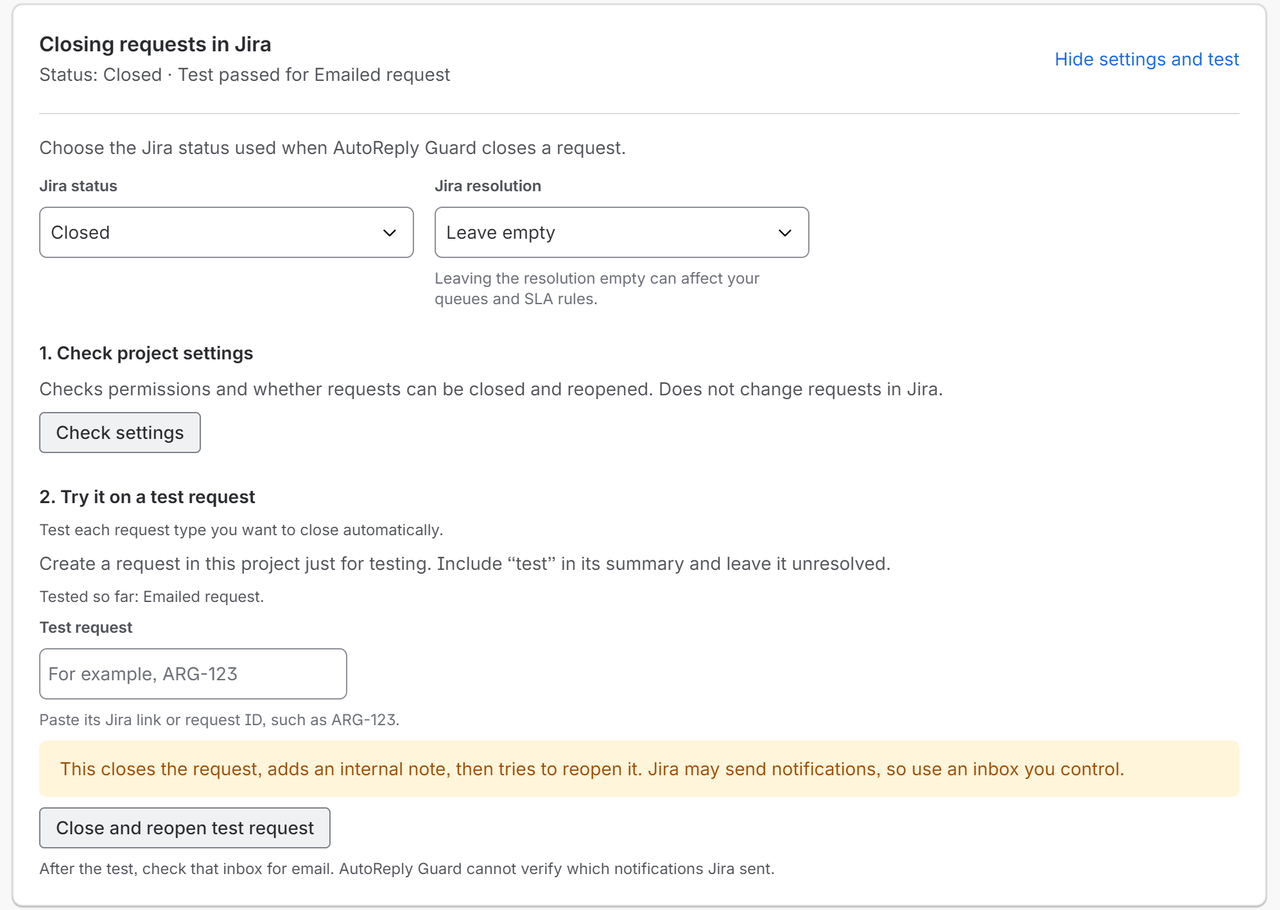
Settings → Protection → Closing requests in Jira: Check settings changes nothing in Jira; Close and reopen test request makes real status changes on the test request. -
Turn on automatic closing
Complete any remaining requirements the app displays, including reviewing pending requests and waiting for the initial email check to finish. Select Close automatically, confirm with Use this option, then Save changes.
Automatic closing can start when all four are true:
- A Jira status for closed requests is chosen.
- The test request has passed.
- No flagged requests are waiting on the Review page.
- The initial email check has finished.
The panel then says Setup is complete. You can turn on automatic closing for [project]. Only categories set to Close automatically on the Rules & exceptions tab close; everything else flagged still goes to Review. If no category is set to close, the Use automatic closing? dialog says so. Choose categories changes them later.
Jira may still send its first “request received” email. AutoReply Guard cannot stop that email.
What do the setup checks mean?
| Check | What it confirms |
|---|---|
| App permissions | The app has the Jira permissions it needs in the project. If any are missing, the result names them and asks you to have a Jira administrator grant them. |
| Emailed requests | Whether the project received requests by email in the last 30 days. This is information only. It does not block automatic closing. |
| Status for closed requests | The status you chose is in Jira's Done status category. |
| Closing transition | The workflow lets each request type move to that status. |
| Reopening transition | The workflow lets it move back, so Reopen can work. |
| Status shown to the customer | The setup test checks the customer-facing status before automatic closing is enabled. Recheck after changing the workflow. |
| Resolution | The test request gets the resolution you chose, or stays empty if you chose Leave empty. |
| Queues and SLA goals | Information for you to check yourself, never shown as passed. The app cannot read your queue filters or SLA goals. Check that each SLA goal stops or pauses at the status you chose. |
What should I choose for Resolution?
Choose one of your site's resolutions, or Leave empty. An empty resolution can leave a closed request in queues or SLA rules that depend on resolution, such as an Unresolved filter. If your queues or SLA goals depend on resolution, choose one of the resolutions your site already uses, then check those filters and goals against the status you chose.
Only some request types passed
The app tests and names each request type separately. Until a type is tested, the check says Finish testing [request type] before AutoReply Guard can close requests of this type. Request types that passed can close automatically; the blocked types stay in Review until their own test passes.
The workflow changed
The setup is checked again once a day. If a request type stops passing, for example after a workflow edit, automatic closing waits for that request type. Settings and the Overview say Automatic closing is on for [project], but waiting for setup for [request type]. Select Check settings. Request types that still pass keep working.
Select Check settings to see what to fix. After a workflow change, close and reopen a test request again for each affected request type.
Adjust your settings
The default rules work without custom phrases or requester rules. Change these settings only when your team needs different behavior.
What each category can do
On the Rules & exceptions tab, choose the project, then use Email categories to choose What happens for each one.
| Category | What it catches | What it can do |
|---|---|---|
| Automatic replies | Out-of-office and other automatic responses. | Off, Review or Close automatically. Close automatically by default, so these close once the project uses Close automatically. |
| Delivery failures | Notices that an email could not be delivered. | Off, Review or Close automatically. Review by default; switching to Close automatically goes through a preview. Forwarded notices and failed replies to customers still need review. |
| Calendar replies | Meeting acceptances and declines. | Off or Review. When enabled, these always go to Review, because people sometimes type a real question into them. |
| Other helpdesk replies | Automatic acknowledgements from another helpdesk. | Off or Review. When enabled, these always go to Review. |
In a Review only project, nothing closes automatically. Your team can still choose Close. Your category choices are kept for when you turn on automatic closing; such a category shows Goes to Review while this project is set to Review only. Your own phrases and requester rules cannot make a category do more than this table allows.
Keep a person's requests out of automatic closing
- On the Protected requesters card, select Add requester.
- In Request from this person, paste the Jira link or request ID of any request from them, and select Find requester.
- Confirm with Add protection, then select Save changes.
The request link identifies the person's Jira account; the app works with Jira accounts, not email addresses. Requests from a protected requester do not close automatically in that project. Remove protection takes a person off the list. Organisations can be protected on Advanced.
Turn off AutoReply Guard for one project
Turn Use AutoReply Guard off and select Save changes. The page then says AutoReply Guard is off for [project]. New requests in that project are not checked. Your category choices are kept. This affects one project; to stop every project at once, pause instead.
Working with more than one project
Each project has its own settings. The Project selector and the switch appear on both the Protection and Rules & exceptions tabs. If you choose another project with unsaved changes, a dialog titled Unsaved changes in [project] offers Save changes, Discard changes or Stay here.
When shared settings cover a project, a category shows whether it Uses shared settings or whether This project uses its own setting, and people protected through shared settings are marked From shared settings.
Pause every project
Only a Jira administrator can pause or resume. At the bottom of the Protection tab, select Pause all projects in the All projects row and confirm. This stops checking and closing in every project on the site; actions already sent to Jira may still finish.
Requests received during a pause are not checked later. While paused, your team can still Keep a reviewed request and Reopen an eligible closed one. To start again, select Resume AutoReply Guard.
Add your own wording or requester rule
Select Manage custom rules on the Rules & exceptions tab. Rules and phrases save immediately, one at a time; if the project has other unsaved edits, the page asks you to save or discard those first. These buttons do different things:
- Test a message checks wording. It changes nothing.
- Preview changes simulates the rules on past requests. It changes no Jira requests.
- Close and reopen test request performs real Jira status changes on your test request.
- Apply changes or Save changes saves the configuration shown.
Custom phrases
Add wording that helps identify automatic messages in this project, such as your suppliers' auto-reply lines. Under Custom phrases, enter the Phrase (2 to 120 characters on one line), choose its Category and where to Match in (Start of subject, Start of message, or Anywhere in message), then select Add phrase.
Use Test a message to paste a Subject and Message and see whether the phrase matches. With the phrase field empty, it tests the project's saved phrases. A phrase match alone does not mean the request will close.
New phrases send matches to Review. Use for automatic closing opens a preview first. Remove phrase deletes a phrase; if the phrase is used for automatic closing, removing it goes through a preview too.
Requester rules
A requester rule decides what happens to one person's requests in one category. Add it from a request's details in Review or History with For future requests → Add requester rule. Rules appear under Requester rules in Settings, with What it does for each. A new rule sends matching requests to Review. Use for automatic closing lets it close them, after a preview. Remove rule deletes it. Protected requesters are always excluded.
Preview changes, then apply
Any change that could close more requests is previewed before it applies. The preview lists affected recent requests under Current rules and Updated rules, as Would close or Would stay open, with a total such as “[n] more requests would close.” It does not change any Jira requests.
- Choose Check requests from: Last 14 days, or Last 60 days on Advanced.
- Apply changes saves the change for new requests only. Requests already decided do not change.
- If the settings changed while the preview was running, run it again before applying.
- A preview needs AutoReply Guard turned on for the project, the email check finished, and processing not paused.
Use Advanced across projects
The Advanced edition is for teams running several service projects. Standard users can skip this part; nothing here is needed to finish setup.
Advanced: shared settings
On the Shared settings tab, select Create shared settings. Give it a Name (up to 80 characters) and choose its Projects. It can hold email categories, protected requesters, custom phrases and requester rules. Save with Save changes; Edit shared settings opens it again.
- A project's own category settings take priority. Protected requesters from both lists remain protected.
- Shared phrases and requester rules send matches to Review. They do not close requests automatically.
- Saving rechecks recent requests in the selected projects. Automatic closing waits until those checks finish.
- Shared requester rules come from Import rules with Shared settings as the destination, once the shared settings are saved.
- Editing needs administrator access to every affected project. Anyone else can view it.
Advanced: protected organisations
On the Protected organisations card, select Add organisation, paste a request in Request shared with this organisation, and select Find organisations. Choose the organisation, select Add protection, then Save changes. Requests shared with a protected organisation do not close automatically.
While this protection is active, requests whose organisation cannot be read also go to Review, because the app cannot tell whether they belong to a protected organisation.
Advanced: import and export
- Select Import rules.
- Choose where to Add to: a project or the shared settings.
- Answer What are you importing?: Protected requesters, Requester rules or Custom phrases.
- Paste account IDs or phrases, one per line, or a CSV exported from this app.
- Select Preview import, then Import [n] items once every line is ready.
Each line is marked Ready, Already added, Needs requester, Unsupported, Needs fixing or Protected. An account ID is checked for its format only (Valid format; account not verified in Jira.). Nothing imports until every line is ready. Email addresses and domains cannot be imported. Phrases are plain words, not regular expressions. Import up to 500 items or 200,000 characters at a time. Imported rules and phrases send matching requests to Review.
Download settings CSV saves the protected requesters, requester rules and custom phrases for your selection; choose Export from first if there is more than one source. You can import the file into another project or into the shared settings.
Advanced: longer windows, and moving to Standard
- Rule previews can check the last 60 days of requests, not just 14.
- History is kept for 180 days instead of 30. Reopen still works for eligible requests for up to 30 days after closing.
If a site moves from Advanced to Standard, saved protections still apply, and organisations stay protected. Shared settings stay saved but are no longer applied. Editing shared settings and the other Advanced features needs Advanced again.
Fix a problem
Open the problem that matches what you see.
No requests appear in Review
- Check that Use AutoReply Guard is on for the project and that you selected Save changes.
- Only new requests created from email are checked. Replies that Jira adds as comments to an existing request are not.
- Check whether AutoReply Guard is paused. Requests received during a pause are not checked later.
- Requests you do not have permission to view are not shown, and the page tells you how many.
- If a warning says Requests haven't been checked for [time]., check the app's access and setup, then review requests received since the last successful check in Jira.
Automatic closing will not turn on
Read the lines under What should happen to automatic messages?. They name the missing checks and the requests still waiting in Review. Fix each one and wait for the initial email check to finish.
- “Finish Closing requests in Jira first: select Check settings, then Close and reopen test request. When both pass, choose Close automatically again.” / “Finish Closing requests in Jira for this project in Settings.”
- Complete Set up automatic closing: choose the Jira status, select Check settings, then close and reopen a test request.
- “Save changes before running this check.” / “Save your changes before testing.”
- Select Save changes first, then run the check or the test.
- The test request is refused
- Use a request from this project, created for testing, with “test” in its summary and still unresolved. Paste its Jira link or request ID.
- “This project doesn't have a usable Closed transition yet.”
- Ask a Jira administrator to add a way to close and reopen these requests, then select Check settings again.
- “Automatic closing is on for [project], but waiting for setup for [request type]. Select Check settings.”
- The daily recheck found a problem, often a workflow edit, or that request type has not been tested. Select View settings and test, then Check settings. Fix the failed check, or run the test request for that request type.
- “Automatic closing is off in [project]. AutoReply Guard no longer has permission to change request statuses.”
- Ask a Jira administrator to restore the app's Transition Issues permission, then select Check settings again.
I cannot reopen a request
Reopen is available for up to 30 days after closing, only for requests closed through AutoReply Guard, and only when the Jira workflow allows the change. In each case below, open the request in Jira to change its status there.
- “The 30-day reopen window has ended.”
- Open the request in Jira and change its status there.
- “This request changed after it was closed, so we haven't reopened it.”
- Someone or something changed it after closing. Check the latest details in Jira and reopen it there if needed.
- “This workflow has no way to return from [status] to [status].”
- Ask a Jira administrator to add that transition to the workflow.
- “Jira didn't allow this request to reopen.”
- Open it in Jira to see what is blocking the transition.
- “Only requests closed by AutoReply Guard can be reopened here.”
- This request was closed another way. Change its status in Jira.
Closed requests still appear in a queue
Closing changes a request's status. Many queues and Unresolved filters look at the resolution instead, so a closed request with an empty resolution can still appear. Check your queue filters, consider a resolution for closed requests, and check that each SLA goal stops or pauses at the status you chose.
I cannot find a request in History
- Check the Project and Outcome filters, and the hidden ones under More filters. Clear filters resets them all.
- The dates filter by when the request arrived. If you see The start date must be on or before the end date., change Received from or Received until.
- Requests you do not have permission to view are not shown.
- History is kept for 30 days on Standard and 180 days on Advanced. Select Load more for older requests.
Other messages: permissions, saving and subscription
- “No service projects are available to configure”
- You need project administrator access to at least one service project.
- “You need project administrator access to change these settings.”
- Ask a Jira administrator to make you a project admin, or ask a project admin to make the change.
- “Only Jira administrators can pause or resume processing.”
- Ask a Jira administrator.
- “We couldn't confirm whether the change was saved.” / “Someone changed these settings.”
- Reload the latest settings and check them before trying again.
- “This request can't be closed from its current status. Open it in Jira to check.”
- The workflow has no route to your status for closed requests from where the request is now.
- “We couldn't confirm whether [key] closed.”
- Check the request in Jira before trying again. It shows as Needs attention in History until confirmed.
- “This request has already been reviewed.” / “Another action is in progress for this request.”
- A teammate got there first, or an action is still running. Refresh, or wait for it to finish.
- “Your trial or subscription has ended.”
- The app is not checking or closing requests, and settings cannot be changed. History and Reopen still work. Renew the subscription to resume.
Still stuck? Email [email protected] with the request key and the approximate time. Do not send exports of customer data.
Reference
Data and permissions · Editions and billing · Uninstall
Data and permissions
To classify a request, the app reads its summary and description. It stores one decision record per request it handles in Forge storage, inside Atlassian. That record holds the outcome and the evidence shown in the details: the matched wording and, where one was recorded, a message excerpt.
It stores the Jira account IDs of protected requesters. For a teammate who kept, closed or reopened a request, it stores their account ID and can store their display name, which History shows as who acted. The app does not keep a separate email archive, but excerpts can contain personal information from the original request, and a short excerpt can include all the text of a short message.
In each project it needs the Jira permissions that Check settings names: browse the project, transition requests and add comments (the internal note). It acts only in projects where an admin has turned on Use AutoReply Guard, and only with the permissions granted in each project's permission scheme. The app is built on Atlassian Forge; all processing and storage stay inside Atlassian's infrastructure.
History records are removed after 30 days, or 180 days on Advanced. More detail is on the privacy page.
Editions and billing
AutoReply Guard comes in two editions, Standard and Advanced, with no free edition. Either can be tried free for 30 days with Atlassian's standard evaluation. Pricing follows the user tier of your Jira site; there is no email-volume meter. Standard includes everything on this page except the Advanced features.
The 14-day and 60-day rule-preview windows are how far back a preview looks; they do not extend a free trial. If the trial or subscription ends, AutoReply Guard stops checking and closing requests, and settings cannot be changed. You can still view settings and History, reopen eligible requests, and pause or resume processing.
Uninstall
A Jira administrator uninstalls from Apps → Manage apps. Checking and closing stop, and the app's stored data is removed by Atlassian under Forge's app-removal rules. Requests the app already closed stay closed, and their internal notes stay in Jira. To put back recent closures, use Reopen in History on eligible requests before you uninstall; afterwards, change the status in Jira instead.
Guide last reviewed 28 September 2026.